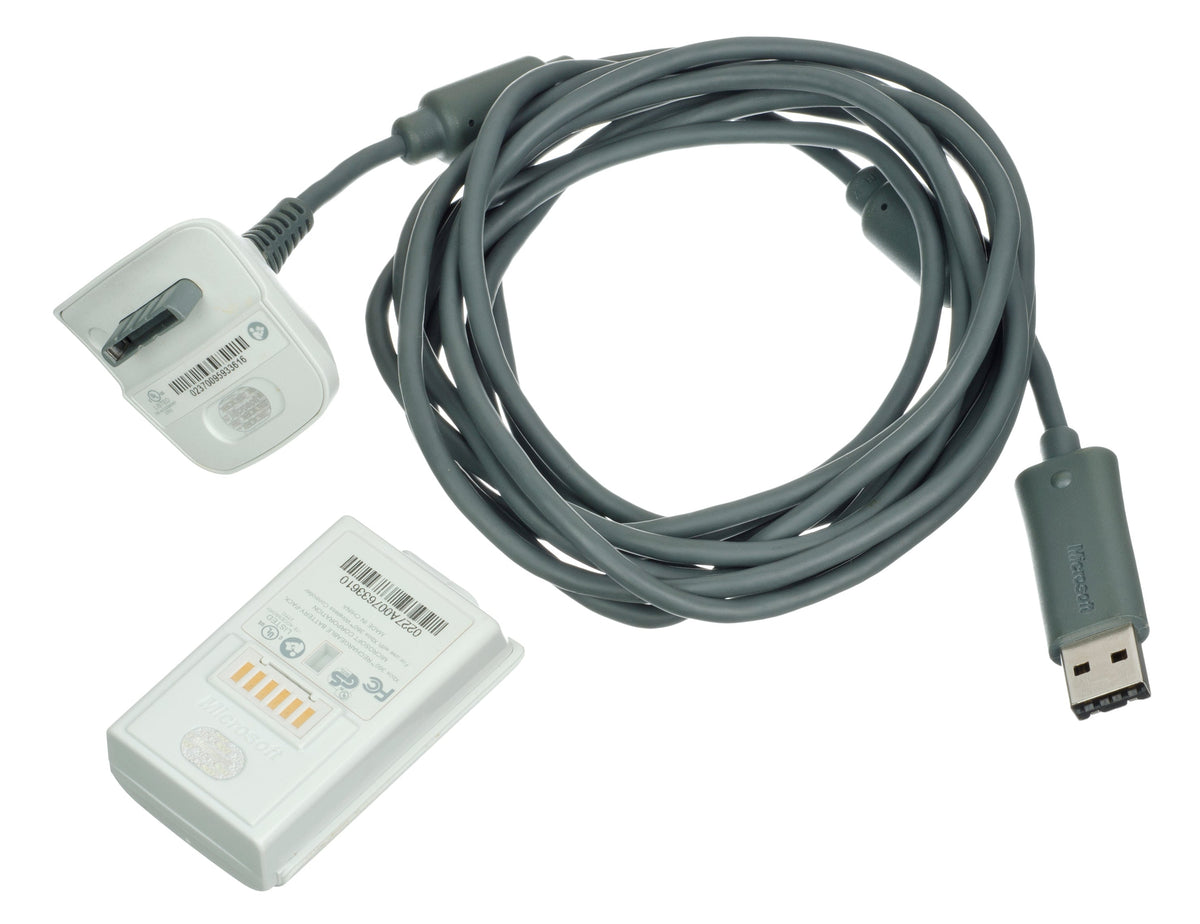
An Xbox 360 wireless controller with a cable plugged into the top is still a wireless controller. The Play & Charge cable gives it a charging connection. It does not turn it into the wired USB gamepad a PC is waiting for.
That distinction can save you from buying the same solution twice. A used controller, a loose cable and a battery pack may look like a complete setup in a listing photo. Whether they are enough depends on where you intend to play.
This guide covers Microsoft's original Xbox 360 controller hardware. Match third-party controllers, replacement batteries and adapters to their own instructions. A familiar shell is not a compatibility specification.
Identify the controller before buying a cable
There are two different starting points: an actual wired Xbox 360 controller and an Xbox 360 wireless controller. The wired model has its own attached cable. The wireless model can have a detachable Play & Charge cable connected, but that does not change its input connection.
| Your hardware | What the cable does | What to check for PC use |
|---|---|---|
| Original wired Xbox 360 controller | Provides the USB connection | Complete cable, USB end and compatible software |
| Xbox 360 wireless controller with Play & Charge cable | Charges the compatible rechargeable pack; gameplay remains wireless | An Xbox 360 Wireless Gaming Receiver and compatible software |
| Xbox 360 wireless controller without a charging cable | No cable involved | Battery power, the receiver and compatible software |

The wired controller photograph shows a breakaway connection in its cable. For a used purchase, ask to see the complete run from controller to USB plug. A controller with part of its lead missing is a different proposition from a complete wired pad. Do not let the word “wired” do the inspection for you.
Play & Charge handles power, not PC input
Microsoft's original Play & Charge manual explicitly says the controller continues sending gameplay wirelessly while the cable is connected. Brook, an accessory manufacturer, gives the same practical warning in its support instructions: USB charging is not the wireless controller's input connection to a computer.
For a wireless Xbox 360 controller on PC, the receiver is therefore a separate piece of the setup. A charging light does not establish that the computer can receive button presses. It tells you something about power, which is a different job.
That is why “I connected the cable and Windows noticed something” is an incomplete test. Open the intended game and confirm that the controller actually operates it. A USB notification is a very short game with disappointing replay value.

Keep the receiver and software questions separate
The pictured accessory is an Xbox 360 Wireless Gaming Receiver for Windows. Microsoft's own 2007 Windows article describes connecting that receiver by USB to use a wireless Xbox 360 controller on a PC. It documents the receiver's purpose, not a guarantee about your current Windows installation.
Before buying legacy PC hardware, check the exact receiver model, operating system and software requirements. Ask for a demonstration on the machine you intend to use when possible. A seller's successful test on a different computer is useful information, but write down which computer and software were involved.
For troubleshooting, establish three observations in order: does the computer recognize the receiver, does the controller connect to it, and does the intended game respond? Those checkpoints help you describe the failure. They do not automatically identify a bad controller, broken receiver or particular driver problem.
Check the battery hardware in the box
The original Xbox 360 console manual distinguishes the AA battery holder from the Xbox 360 Rechargeable Battery Pack. Photograph the rear of a used wireless controller and ask which one is included. “Battery included” is not detailed enough to tell you what you can charge.
Follow the Play & Charge instructions for the compatible rechargeable pack. Do not treat a pair of disposable AAs in a holder as a rechargeable pack. Microsoft's charging manual also requires a battery pack or AA holder to be installed when connecting the charge cable. Leaving the battery compartment empty is not a documented shortcut.

For an old rechargeable pack, ask about demonstrated use after disconnecting the cable. Microsoft notes that battery capacity decreases with age and recharge cycles. A photograph of a green light does not tell you how long that particular pack lasts. Record the seller's actual test rather than importing an original advertised runtime into a used listing.
On an Xbox 360 console, pair the wireless pad
The original console manual gives a separate connection procedure: turn on the controller with the Guide button, turn on the console, press the console's Connect button, then press the controller's Connect button. The ring of lights flashes during connection; a lit quadrant identifies the controller's position afterward.
Pair directly with the Xbox 360 console using its Connect button; the PC receiver belongs to the computer setup. If you pair the controller with another Xbox 360, the manual says its connection to the previous console is lost. Record which system you paired it with before deciding it has forgotten how to work.
Build a useful test before the return window closes
- Inventory the pieces. Record whether the pad is wired or wireless, which battery hardware is included, and whether you have the required cable or receiver.
- Test the intended connection. Use the console or PC arrangement you bought it for. For wireless PC use, include the receiver in that test.
- Check the controls. In a familiar supported game, try both sticks, directional inputs, face buttons, bumpers and triggers. Note any missed or unwanted inputs.
- Check untethered use separately. If battery operation matters, test it without the charging cable and record how the controller behaves.
- Keep the details. Save the listing, included-parts photos and test notes. “Wireless pad, charging cable, no PC receiver” explains much more than “controller does not work.”
For exterior care, our controller cleaning guide covers the separate maintenance job. For a room full of Xbox 360 consoles, use our System Link guide. Sorting the controller's power and input path comes before diagnosing the rest of game night.
Give the working controller something to do
Building an Xbox 360 shelf? Check Zypher's listings for Halo 3, Gears of War 2 and Forza Motorsport 4. These links are Xbox 360 game listings, not PC editions or controller bundles. Check each listing's condition and included contents.
Shop games at Zypher, or sell your old games to Zypher when it is time to clear shelf space. Pick the software you want after confirming you have the hardware needed to play it.
Sources and image credits
- Microsoft: original Xbox 360 Play & Charge Kit manual
- Microsoft: original Xbox 360 console manual
- Brook technical support: wireless Xbox 360 controller charging and receiver requirement
- Microsoft Windows Experience Blog: receiver purpose, May 13, 2007
Documentation and image permissions checked October 26, 2026. This is a researched hardware guide, not a report of new hands-on testing. Featured Play & Charge Kit photograph by Evan-Amos, public domain. Uncropped; hosted JPEG compressed, with proportional browser scaling. Inline photo credits and licenses appear in their captions. Archival images illustrate hardware types and do not show specific Zypher stock.