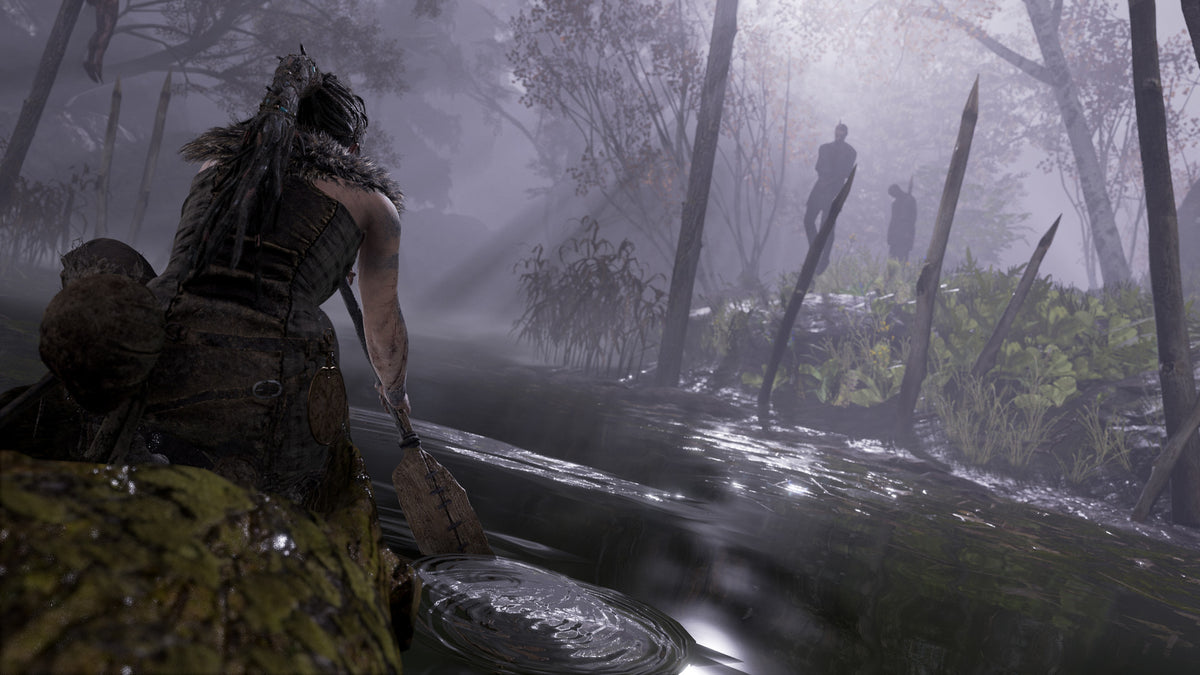
A voice beside Senua can feel close enough to make the space around your chair part of the scene. That is a deliberate piece of Hellblade’s presentation, and it deserves more preparation than leaving every setting where the installer found it.
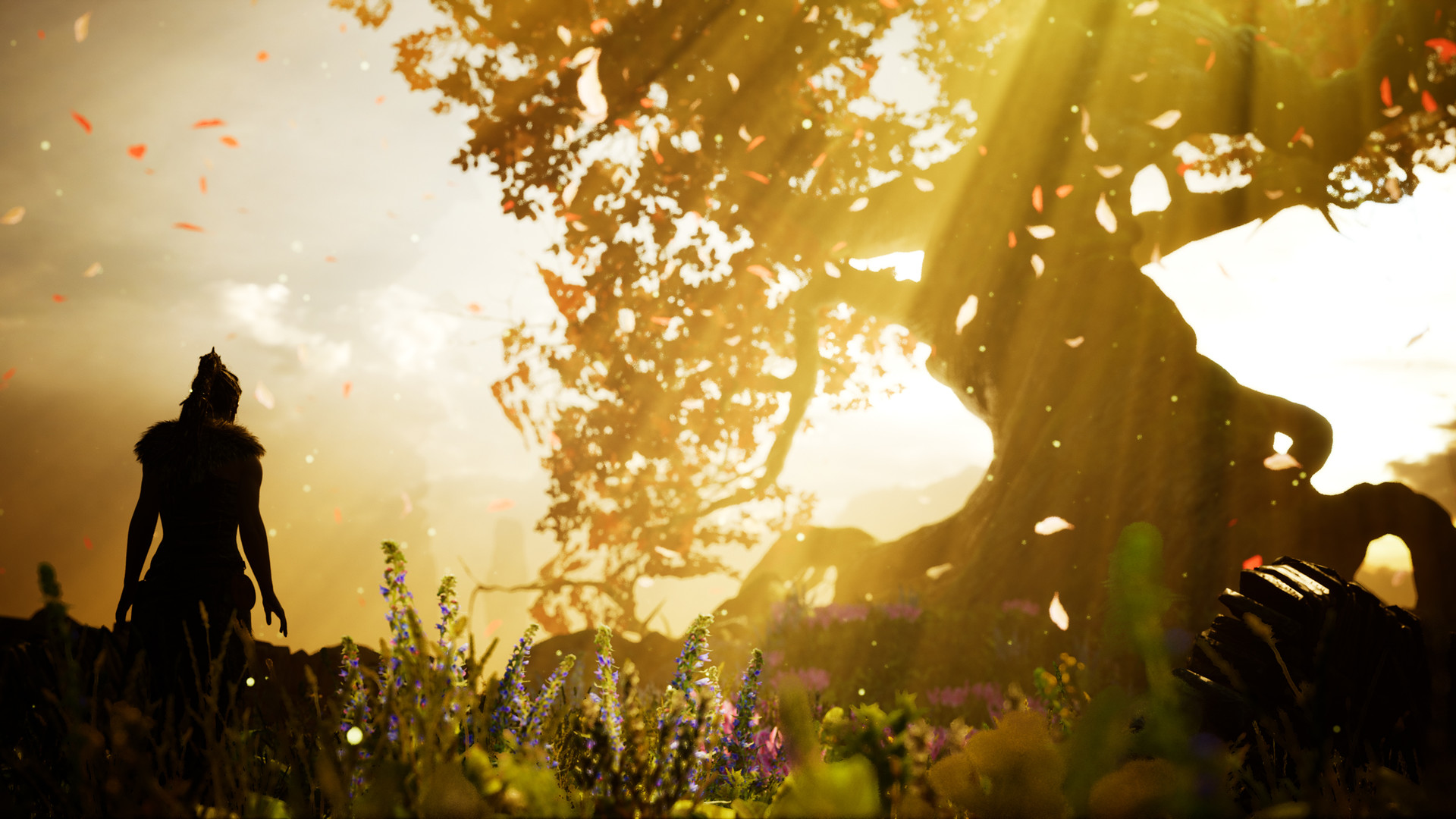
Hellblade: Senua’s Sacrifice combines an intimate performance with combat, exploration and a carefully shaped soundscape. For a first visit, the most useful setup is one that lets you follow Senua’s journey clearly. The original game’s binaural recording and the current PC Enhanced accessibility options offer several ways to approach that. These screenshots show Senua’s Sacrifice, not its sequel.
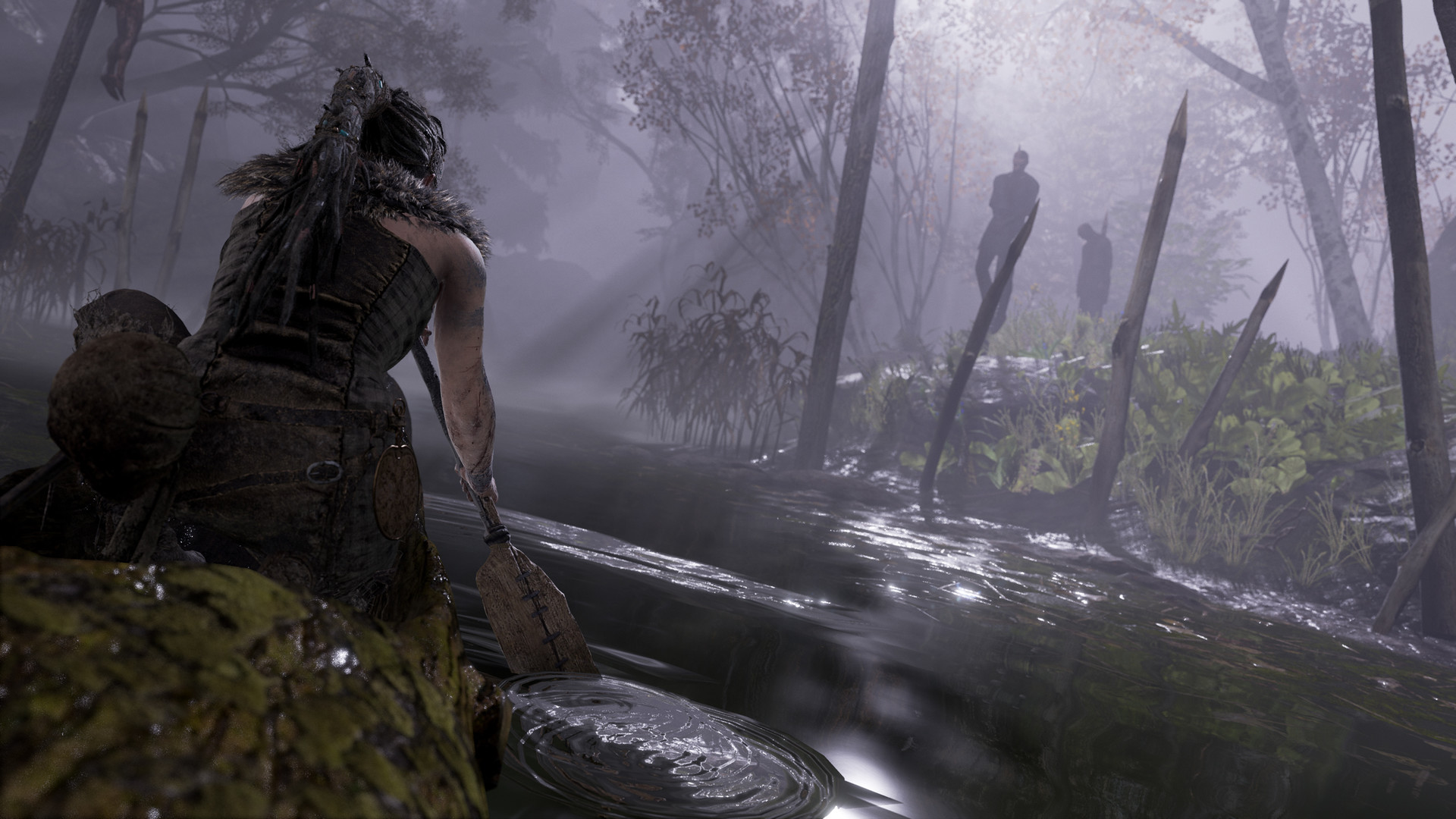
Understand what headphones contribute
In a 2017 PlayStation developer post, Ninja Theory’s Dominic Matthews explained that the voices accompanying Senua were recorded binaurally to create a sense of three-dimensional placement when heard through headphones. Their position around the listener is part of the intended effect.
If you choose headphones, take a moment with the sound before rushing onward. Listen for how voices seem positioned, and set a comfortable level. The point is to hear the performance and space distinctly, not to make every sound as loud as possible.
There is also a practical buying consideration here. A recommendation for headphones describes the presentation; it does not mean a physical game package includes them. Use the audio equipment you actually have and choose settings around your own needs.
Use the voice and effects levels deliberately
The current Steam page’s PC Enhanced feature list separates master, music, sound-effects, voice and menu volume controls. It also lists stereo and mono output. These are useful controls for balancing what you can follow.
If dialogue is getting lost for you, adjust the relevant balance and listen again before raising the entire mix. If mono output is the better option for your setup, it is there to use. The most immersive configuration is not a universal equipment prescription.
Keep the scope clear when following setup advice. These documented options come from the current PC listing. An older console copy can have a different settings menu, so check the version you are about to play rather than expecting every slider to appear everywhere.
Make the text readable before it becomes urgent
Steam lists subtitles with Standard or Large text, several text-color options and either a transparent or solid black background. Menus also have background choices. Try these against a bright scene as well as a dark one.
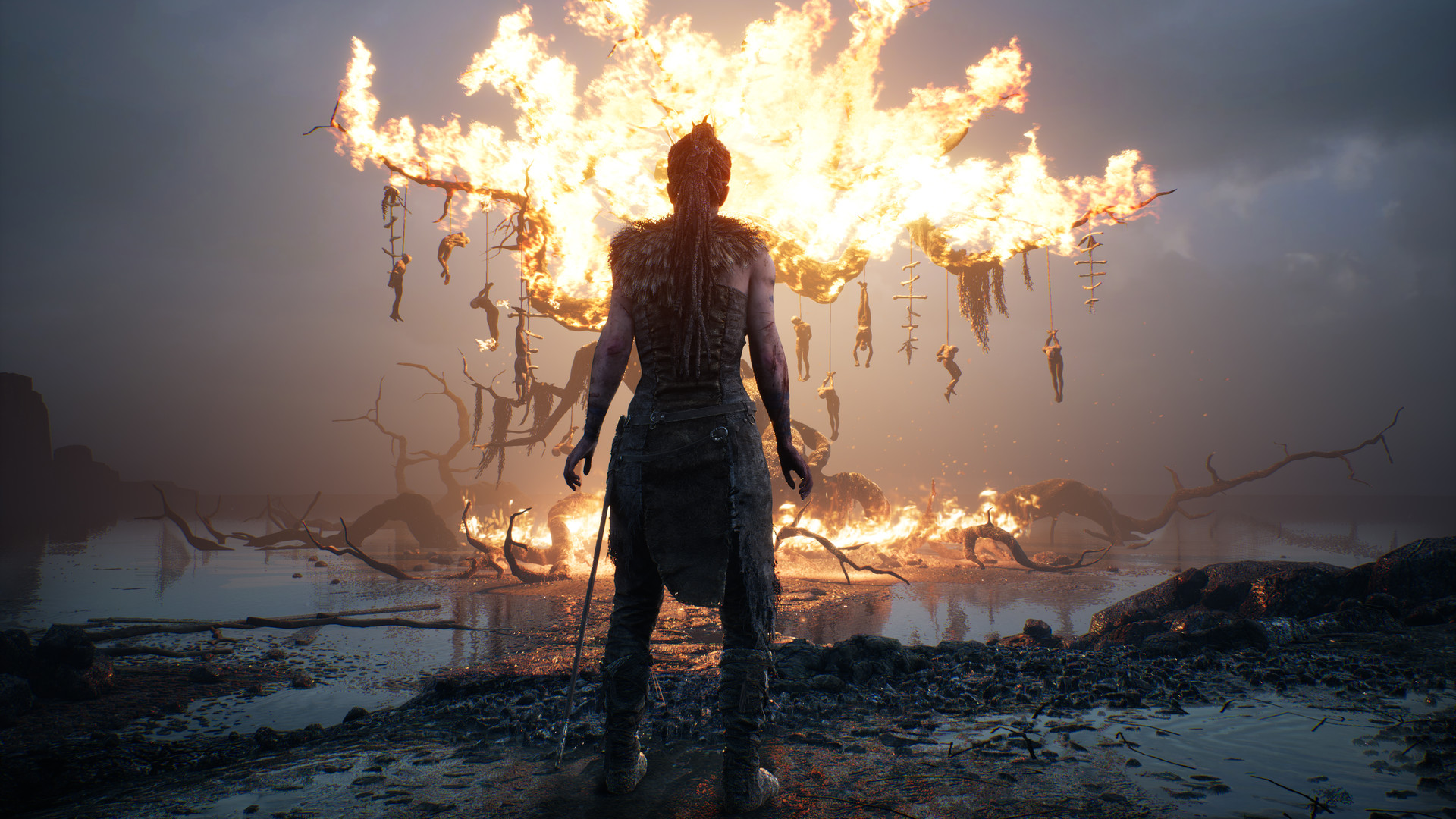
A subtitle style that looks tidy in a quiet menu may be harder to follow over fire or a detailed forest. Pick for readability during play. If you are repeatedly losing the line while looking between Senua and the text, a larger size or stronger background separation is worth trying.
It helps to make this decision early, while you can give it attention. Subtitles are another way into the performance. They should not become a second challenge competing with the one on screen.
Choose combat pressure and control effort separately
The same PC feature list provides Auto difficulty, which adjusts dynamically, alongside Easy, Medium and Hard. It also allows pausing during gameplay and cinematics. Choose the pressure you want rather than treating the default as a test you must pass before enjoying the story.
Running can be set to hold or toggle, and vibration can be disabled. Those choices address how you operate the game, rather than how hard an enemy hits. A toggle may suit someone who does not want to keep a control held during travel; another player may prefer the directness of holding it.
The PC listing also documents input remapping with exceptions for camera and menu controls. Check the actual actions you use frequently. Put movement, combat and interaction where you can reach them reliably, then give the layout a calm trial before a demanding encounter.

Let the setup serve Senua’s journey
Senua’s Sacrifice follows a Celtic warrior into a Viking vision of the underworld as she seeks the soul of her dead lover. The closeness of the camera and voices gives that premise a personal scale. Readability and a clear mix help you stay with it.
Our recommendation is to change settings with a specific observation in mind. If speech is hard to distinguish, work on the mix. If text disappears into the scenery, adjust its presentation. If a held input is awkward, consider the available toggle. You can preserve the game’s atmosphere while choosing a more comfortable way to follow it.
Once those decisions are settled, stop treating the options screen as homework. Senua’s path is what you came for. A few minutes spent making that path readable can be more valuable than chasing somebody else’s supposedly perfect preset.

Shop games and make room for the next one
Browse Zypher’s current game shelves for your next physical game. If you are clearing space, see our trading and selling information.


