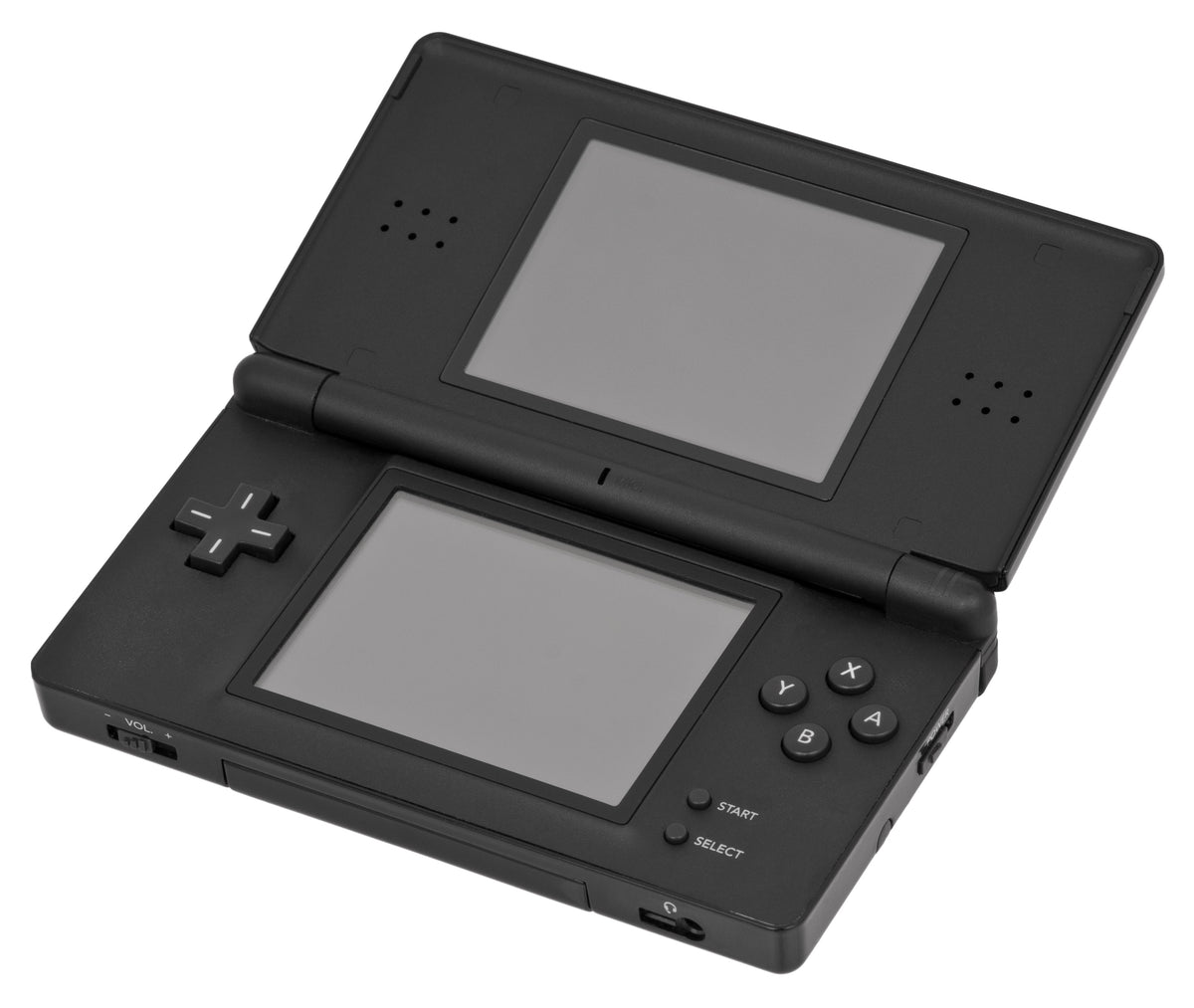
One Nintendo DS game card can be enough for a multiplayer session. The catch is that the game must support single-card play, and the handheld carrying the card has a different job from the guests. Nintendo's one-card instructions put the host inside the game and the other players in DS Download Play.
If everyone opens Download Play and waits, nobody is sending the game. Start by deciding who has the card, then follow the setup for each receiving system. Here is how to get a supported DS session running, understand its limits and narrow down a connection problem.
Check the game before gathering the handhelds
Look for the single-card multiplayer symbol on the packaging, then check the manual for the player count and available modes. A multiplayer label alone does not promise that one copy is enough. Mario Kart DS's English European manual, for example, describes both single-card and multi-card play, with different requirements.
You still need a compatible handheld for every person. Nintendo lists DS, DS Lite, DSi, DSi XL, 3DS and 3DS XL among the systems that can participate in DS Download Play. Sharing a DS game with a 3DS does not mean an original DS can receive 3DS software: Nintendo limits 3DS-game sessions to the 3DS family.

Give the host and guests different jobs
For a card-based DS game, use the following sequence. Nintendo documents the DS setup, the DSi receiving menu and the 3DS Download Play menu separately.
- Prepare the host. With the host system switched off, insert the game card. Turn it on, launch that game and select its single-card multiplayer option. The exact option depends on the title.
- Open the receiving menu. On DS or DS Lite, choose DS Download Play from the system menu. On DSi or DSi XL, choose DS Download Play from the DSi Menu.
- Choose the correct software family on a 3DS. Open Download Play from the HOME Menu, then choose Nintendo DS for a DS game. The Nintendo 3DS choice is for 3DS software.
- Join and wait. Select the host's game on each receiving system and accept the download when prompted. The host should confirm the intended players and follow the game's instructions to finish the transfer and start.
On an original DS or DS Lite that jumps straight into an inserted game, check its startup mode. The Mario Kart DS manual specifies Manual Mode for a receiving system so the DS Menu is available. Reaching the right menu is part of the setup, before any wireless troubleshooting.

Expect the game to set the limits
Mario Kart DS: choose Simple for guests without a card
The manual's multiplayer section, pages 26-31, allows two to eight players. The host selects Simple for single-card play, while guests without a card join through Download Play. Those guests use Shy Guy, and the manual identifies a limited course selection. A restricted character or course choice is therefore not automatically a connection fault.
Normal is the multi-card option: every player needs Mario Kart DS, and the manual describes access to the courses available in single-player. Count the copies you actually have before choosing the mode.
Mario Party DS: player count changes the menu
Mario Party DS's English European manual, pages 36-37, supports two to four players with one card. The host selects Multiplayer. Two-player sessions offer Party, Minigame, Puzzle and Extras modes; three- and four-player sessions offer Party or Minigame modes. Duel Battle is unavailable with more than two players.
These examples show why checking the exact game beats assuming every Download Play session shares the same amount of content. Keep the manual for your edition handy, especially when comparing a loose card with a complete copy.
If the other console cannot find the game
First confirm that the host has opened the correct in-game mode and the guests are receiving the right software type. Then check wireless communication. Nintendo's instructions use the physical wireless switch on original 3DS and 3DS XL systems, and HOME Menu Settings on Nintendo 2DS and New Nintendo 3DS family systems.

Enable wireless before launching the DS game. Nintendo warns that original 3DS, 3DS XL and 2DS systems cannot enable it while DS or DSi software is running. If wireless was off, return to the appropriate system settings before trying the session again.
Bring the handhelds closer together with a clear path between them. Nintendo's troubleshooting page recommends an unobstructed connection and identifies nearby wireless devices as possible interference. Changing the room or moving away from interference is a useful next check.
Finally, confirm that you chose local multiplayer. Nintendo Wi-Fi Connection closed on May 20, 2014; Nintendo distinguishes that loss of online features from offline play. An error from an old online menu does not diagnose the nearby Download Play session.
Keep the session running until everyone is finished
The receiving handheld does not gain a permanent copy. Nintendo says the downloaded game remains until that system is turned off, and some sessions also stop working when the card-holding host switches off. Leave the host running while the group plays.
Saving is game-specific too. Mario Party DS's manual says multiplayer progress is not saved, although newly unlocked minigames are. Check that rule before planning to resume a board later. For other setups, our local multiplayer guide explains the broader mode distinctions, while the Game Boy compatibility guide handles older cartridge questions.
Featured photograph: Nintendo-DS-Lite-Black-Open.jpg by Evan-Amos, CC BY-SA 3.0. All four hardware photographs are used unmodified, with responsive display sizing.


