A PlayStation Vita can put your PS4 session on a smaller screen, but the useful first question is which machine is doing the work. PS4 Link remotely controls your PS4. It does not turn a PS4 game into a native Vita release. That distinction saves a lot of confused shopping, especially when both versions of a familiar game show up in a search.
This guide covers Sony's official Vita-to-PS4 Remote Play setup and the control checks worth making afterward. It is separate from playing a physical Vita game or adjusting a supported PSP download. Think of the Vita as the other end of the connection, with its own buttons, touch surfaces and wireless conditions to account for.
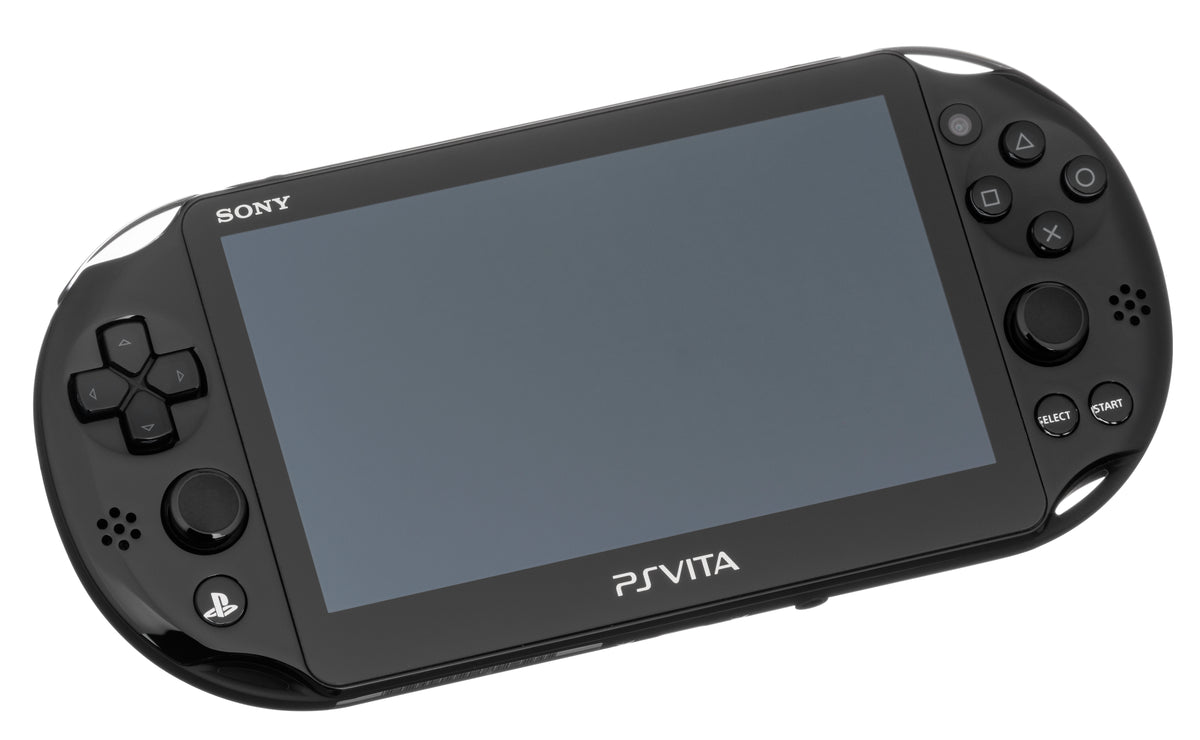
Featured photograph: a PCH-2001 PlayStation Vita. Photo by Evan-Amos, public domain, unchanged. Hardware reference, not a demonstration of a running Remote Play session.
Remote Play and Second Screen have different jobs
Sony's support page distinguishes Remote Play, which accesses the PS4, from Second Screen, which displays additional content for games supporting that feature. Choosing the latter is not another way to request the full remote session.
Before buying a game for this purpose, check its packaging, manual or digital description for support. Sony says most PS4 games support Remote Play, while games requiring a camera or PS Move controllers are excluded. Do not expand “most” into a compatibility promise for an unchecked purchase.
Our advice is to establish the console, game and intended feature before investigating wireless performance. A strong wireless signal cannot supply a feature the selected game does not support. Start with the right job, then work on how well the setup performs it.
Choose a home connection deliberately
Sony's home-network instructions describe two routes: direct Wi-Fi between the Vita and PS4, or a wireless access point connecting them. When using the access-point route, both systems must be on the same network.
On the PS4, open Settings > Remote Play Connection Settings and enable Remote Play. For a direct connection, also select Connect Directly with PS Vita/PS TV. Keep track of which route you chose. Otherwise a comparison between the sofa and another room can quietly become a comparison between two different connection methods.
Begin near the equipment, with a short, repeatable test. Then try the place where you actually want to sit. Change one variable at a time and note what changes. That will tell you more than repeatedly reconnecting while announcing that the internet is terrible.

Pair the handheld with the intended PS4 account
The home-network manual says to log into the PS4 user linked to the same account as the Vita, then open PS4 Link > Start > Remote Play on the handheld. Follow the manual registration prompts if the console is not found automatically.
Sony's current support walkthrough also describes an eight-digit registration number with a five-minute entry window. Use the code displayed for your own pairing attempt. An old screenshot of a code is not a useful troubleshooting tool, and there is no reason to share the number publicly.
Once the connection works, test something simple before committing to a long session. Confirm that the expected PS4 screen appears and that you understand how to leave the session. A successful connection is the beginning of the usability check, not proof that every control will feel comfortable in every game.
Open the Button Guide before blaming the missing buttons
Sony's Remote Play control instructions say the Vita's PS button opens the toolbar. Its Button Guide changes assignments, which vary by game. The toolbar also includes settings for feedback when touching the screen or rear touch pad.
Our practical check is to list the actions you use frequently, locate their assigned inputs, then try them in a calm section. A menu is enough to inspect a label; it is not enough to judge an action you normally combine with movement or aiming.
Hold the handheld as you normally would during play. Work out where your fingers naturally rest and whether you can reach the needed inputs without losing your grip. The aim is a layout you can use consistently, not a claim that a touch surface feels identical to another physical trigger.

Separate a connection problem from an unavailable feature
The Vita manual's limitations include restrictions while the PS4 is broadcasting, another user is using certain sharing features, or a Blu-ray movie or DVD is playing. It also warns that some game content might not display during Remote Play.
Check what the console is doing before treating every interruption as a broken handheld. Record whether the problem is finding the PS4, keeping the connection or using a particular action. Those are different observations and lead to different questions.
For occasional image or audio skipping, Sony's support page offers a Low (360p) resolution option under PS4 Link's video-quality settings. Try a short comparison before deciding whether the reduced detail is a worthwhile compromise. No setting here guarantees performance on an untested home network.
Build the right PlayStation shelf with Zypher
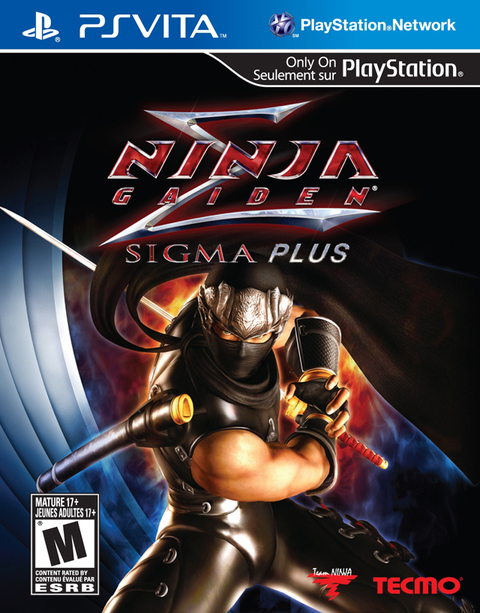
Shop physical PlayStation games at Zypher. Ninja Gaiden Sigma Plus for Vita is a Vita purchase; Uncharted 4: A Thief's End for PS4 is a PS4 purchase. These links identify the actual platforms, not a cross-buy bundle or a verified Remote Play recommendation for those individual games.
Read the selected condition and included materials. For hardware shopping, use our Vita model, storage and cable checklist. Passing a finished collection along? Sell your old games to Zypher and check current eligibility.
Sources and photograph credits
Sony's support page and original Vita manuals linked above were opened and checked November 7, 2026. Procedures are Sony's documented instructions, not a claim of fresh hardware or network testing. Comparison methods and comfort advice are Zypher editorial recommendations.
All three hardware photographs are Evan-Amos's own work, released into the public domain on their linked Wikimedia Commons file pages. Complete images used unchanged apart from responsive display sizing. No screenshot or Sony press-image license is inferred.