A second stick is an appealing reason to revisit PSP games on a PlayStation Vita. Before expecting a modern control overhaul, check what that stick is actually sending to the game. Sony provides input assignments, not a promise that every older adventure suddenly understands a new camera system.
This guide covers the official PSP-game settings on Vita: where to find them, how to compare them and what to leave alone. It assumes you already have a supported PSP download running. It is not a claim that every PSP release is compatible or currently available to buy.
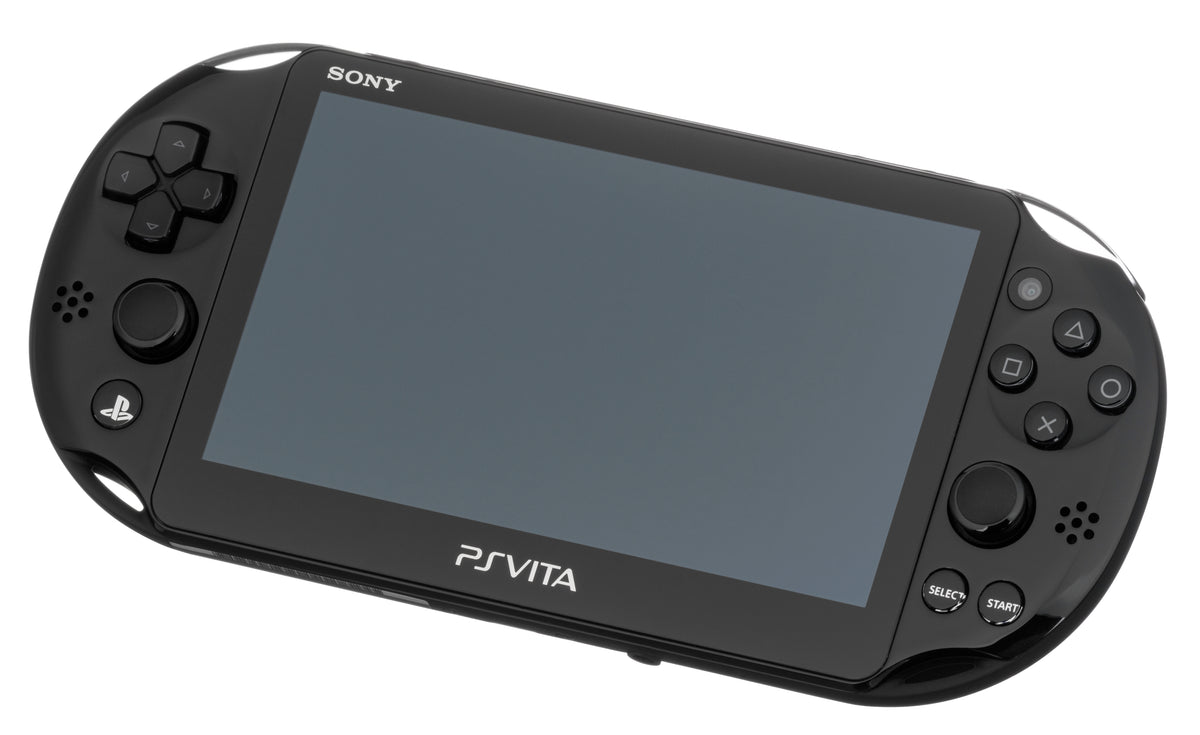
Featured photograph: a PCH-2001 Vita with its two sticks and front controls visible. Photo: Evan-Amos, public domain. Hardware reference, not a screenshot of the PSP settings menu.
Open the PSP settings while the game is running
Sony's Vita user guide says to hold the PS button during a PSP game, then choose Settings in the quick menu. This is the PSP software's settings route, rather than a recommendation to change every system display option.
Our advice is to begin with a question you can test. Is reaching a particular input awkward? Do you dislike the way the image looks? Pick one issue before changing anything. Otherwise, you can finish with different controls and a different picture while having no idea which adjustment helped.
Use a familiar, low-pressure section for comparison. A menu can tell you that a button responds; a short section of play tells you whether that input is comfortable where you actually need it. Choose somewhere you can repeat the same task, rather than making a boss fight double as a settings survey.
Map an existing action, then judge the result
Sony documents assigning PSP functions, including its analog pad and directional buttons, to Vita's right stick. It also allows PSP button functions on the touchscreen's four corners.
The distinction is worth understanding before changing a layout. An assignment gives your hand another way to request an existing action. If that action controls a camera in the game, the new position may be convenient. If it performs something else, you have moved that something else. The stick has not hired a developer to rewrite the game.
Start by identifying the action you want within the game's own instructions. Then test one assignment and describe what happens in plain language. “My right thumb now triggers this action” is useful. “The controls are upgraded” is too vague to tell you whether the change suits this game.
Touchscreen assignments deserve the same practical test. Decide whether the selected corner is comfortable to reach during play and whether you can use it without losing track of the scene. Leave unused assignments alone until you have a specific action you want to move.

Bilinear filtering is a visual preference to compare
The same Sony guide describes Bilinear Filtering as smoothing graphics and notes that its effect can be difficult to see in some games. Sony explicitly suggests disabling it when the result is not to your liking.
Compare a stationary scene first, then a short stretch of movement. Look at whichever details matter to you: character edges, small text or the shapes you follow while moving. Keep the scene and viewing conditions consistent. You are choosing a presentation you can read comfortably, rather than trying to win an argument about the most correct screenshot.
Do not change your input mapping during this comparison. If the picture is the question, leave the controls alone until you have an answer. A simple on-and-off comparison is easier to remember than a tour of several settings followed by a vague feeling that something changed.
The color option has a model limit
Sony labels Color Space (PSP System) for the PCH-1000 series only, describing an attempt to bring its OLED screen's color presentation closer to PSP's LCD. It also says the effect may be subtle or undesirable. The featured PCH-2001 is a different model.
That model label matters when following somebody else's setup notes. A missing option is not automatically a fault. Match the instruction to the handheld before chasing a problem that consists of owning a different revision.

Compatibility comes before the settings experiment
Sony warns that some PSP software is incompatible with Vita. Its February 2012 launch FAQ also explicitly says Vita does not support UMD discs. Those are separate limits from how a supported download looks or controls.
A physical PSP copy such as Daxter for PSP belongs to a UMD collection. Buying it does not supply a Vita download. Check the exact game, format and your legitimate access before planning around a particular title. This guide does not verify today's digital availability or offer a disc-conversion procedure.
For hardware identification and storage, use our used Vita buying checklist. Keep that purchase inspection separate from choosing settings for a game already working on your handheld.
Build your handheld shelf with Zypher
Buy your next physical game from Zypher Trading Video Games. Check Daxter for PSP for a PSP collection, or Ninja Gaiden Sigma Plus for Vita for that platform's physical shelf. These are separate games for the named systems, not a shared purchase or a digital entitlement bundle.
Read each selected copy's condition and included contents. Shop Zypher's games, or sell your old games to Zypher. Sony instructions, image permissions and native listings checked November 4, 2026. Comparison methods and comfort recommendations are Zypher editorial advice.