The old PlayStation card is the important part. The disc can put you back at the beginning of a game; that little card may be what gets you back to where you actually stopped. Bringing its saves to a PS3 should start with a clear goal: keep the original and make a usable second copy.
Sony documents a route through the Memory Card Adaptor and the PS3's internal memory cards. There is also a catch worth reading before pressing anything: some protected data can only be moved. A move removes the source data. That is a different job from keeping two copies.
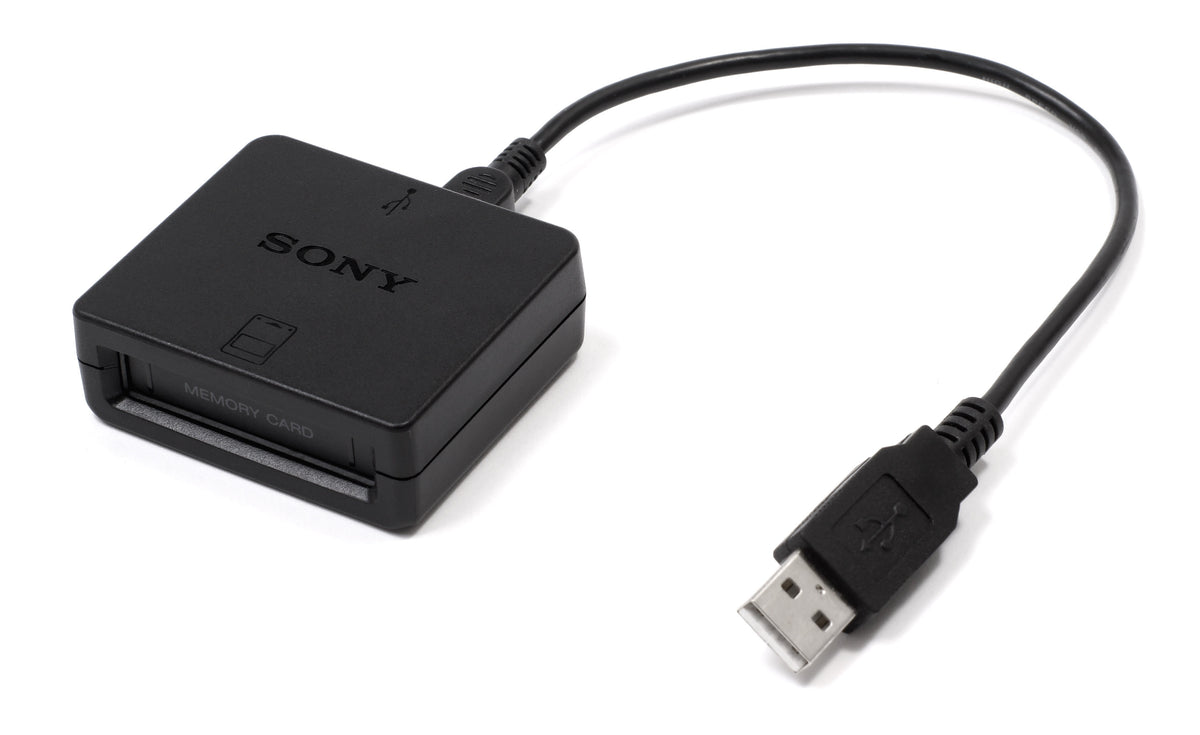
Featured photograph: Sony's PS3 Memory Card Adaptor, including its USB connection. Photo: Evan-Amos, public domain. Hardware reference; no accessory is implied to be included with a game purchase.
Decide which save you are trying to preserve
Our recommendation is to begin with one recognizable file. Write down the game, the physical card and something that identifies the progress you expect to find. If several cards have accumulated in a drawer, work with one at a time. “The gray one” stops being useful as soon as there are three gray ones.
This guide concerns existing original PlayStation save data on a physical card. For copying between two cards on a PS2, use our separate PS2 memory-card copying guide. For ordinary PS3-format saves and system backups, use the PS3 backup guide. They begin with different sources and destinations.

Make an internal PlayStation card on the PS3
Sony's PS3 quick reference, pages 22–23, separates creating a card from assigning its slot. Under Game, open Memory Card Utility (PS/PS2) and create a new internal card. Select the PS type for original PlayStation data, then give it a name.
Use a name you will understand later. We suggest naming the destination for its purpose, such as a particular source card, instead of treating it as an anonymous dumping ground. That is an organizational suggestion, not a required Sony naming format.
The internal card is stored inside the PS3. Creating it does not copy anything from the old plastic card by itself. Keep those two events separate in your notes: destination created, then data transferred.
Copy the chosen file through the adaptor
In Sony's physical-card transfer instructions, the route is:
- Open Game > Memory Card Utility.
- Connect the Memory Card Adaptor to the PS3 and insert the source card.
- Select the desired saved-data icon on that card and press Triangle.
- Choose Copy, then select the internal destination.
If no destination is listed, Sony provides an option to create an internal card there. Some transfers can take several minutes. Let the operation finish before continuing. Sony's quick reference also warns against disconnecting USB devices or turning the system off while data is being saved, loaded or deleted.
If Copy is prohibited and the offered route is Move, stop if you need the original retained. Sony says moving protected data deletes it from the source card. Do not treat that prompt as a harmless alternative just to get past it. This article's two-copy goal has not been met by relocating the only file.
Assign the destination to a slot
The internal-card instructions explain the next step: select the destination card in Memory Card Utility, press Triangle and choose Assign Slots. Follow the game's own instructions about the slot it uses. Sony notes that some software preassigns slots.
A card appearing in the utility and a card assigned for play are separate checks. Sony also lets you reach Assign Slots during gameplay through the controller's PS button. If the game cannot see the expected progress, inspect the selected card and slot before deciding the transfer failed.

Verify the progress before retiring the old card
Our final check is to launch the appropriate game and look for the recognizable progress you recorded at the start. Check the destination's contents in the utility as well. Keep the source card aside rather than immediately deleting files to make room. A familiar icon is useful evidence; the expected progress loading is a stronger check.
Save transfer does not establish game compatibility. Sony warns that some older games behave differently or do not work properly on PS3, and PS2 disc support depends on the system. Our PS3 model guide covers the separate PS2-disc question. A file arriving successfully cannot add missing compatibility.
Put another PlayStation classic on the shelf
Buy original PlayStation games from Zypher Trading Video Games. Check our Metal Gear Solid for PS1 listing for its current condition choices and included contents, or shop Zypher's games. A software listing does not include a save card or adaptor unless stated. These shopping links are not a promise about your particular save's compatibility.
Clearing out games you no longer play? Sell your old games to Zypher.
Sony instructions, exact photo permissions and native Zypher product listing checked November 5, 2026. The preparation and verification suggestions are Zypher editorial guidance. No claim of firsthand testing, file repair or guaranteed recovery.


