ZYPHER XP | SAVE YOUR FACTORY
The factory can survive a biter attack and still lose an argument with the wrong Save button. Before moving a long-running Factorio world to a newer version, keep a separate copy that the new version never touches. A familiar filename is not much protection once it contains a converted save.
This guide covers local PC backups on Windows, macOS and Linux. The folder locations come from the officially hosted Factorio Wiki; the copy-and-check routine is Zypher's practical recommendation. Nintendo Switch saves and cross-install blueprint-library migration need different instructions.
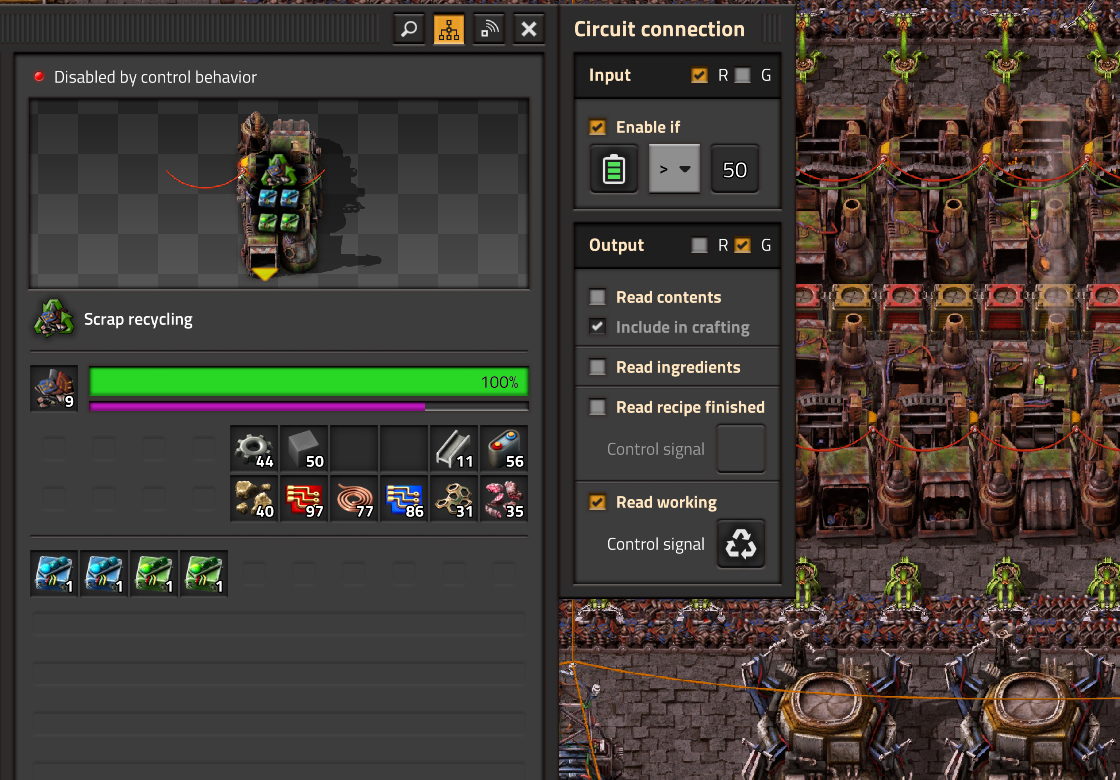
Featured image: Wube's circuit input/output interface illustration, reused in its 2.1 Stable announcement. Changes to these systems are one reason to preserve an older factory before updating. © Wube Software.
Loading successfully does not mean the factory behaves identically
In its October 23, 2026 announcement for 2.1 Stable, Wube says 2.0 saves will load, but changes such as the circuit input/output split may break existing designs. It also warns that updated saves and blueprints cannot be downgraded to 2.0, and recommends backing up both.
That gives the backup a specific job: preserve the state from before conversion. If you have already updated and saved over your only copy, a backup made afterward preserves that newer state. It does not recreate the earlier one.
Before switching versions, make a named save, let saving finish, and exit the game. Our recommendation is to copy files while the game is closed so you are working with a settled set of files. Leave the original in place and use Copy, rather than Cut or Move.
Find the user data, not just the installed game
The wiki's directory reference separates user data from the application files. Saves live in the saves subfolder. Default user-data locations are:
-
Windows:
%appdata%\Factorio -
macOS:
~/Library/Application Support/factorio -
Linux:
~/.factorio
For a ZIP installation, look in the unpacked Factorio directory. Flatpak Steam uses a different root, ~/.var/app/com.valvesoftware.Steam/, and custom configurations can move user data. These defaults are starting points, not proof that an empty folder is your active save location.
Check for the save you just made. Its name and modification time should make sense for that session. If they do not, stop and identify the active folder before proceeding. Copying the wrong directory with great confidence remains copying the wrong directory.
Give the backup a date and a version
Create a separate folder outside the live game-data directory. Give it a label such as Factorio-before-update-2026-11-12. Copy the save files you want to retain into it, keeping their ZIP files intact. Write a short accompanying note with the game version, save name and whether you were using the base game, Space Age or other mods.
For a broader snapshot, preserve a copy of the user-data directory too. The wiki identifies separate mods, scenarios and config/config.ini locations. Treat that snapshot as an archive to keep, rather than a folder to paste over a working installation without checking what it contains.
A folder elsewhere on the same drive is useful for separating versions, but it still shares that drive's fate. Keep an additional copy on another storage device if this is a world you would hate to lose. Finish the copy and compare filenames and file sizes at the destination before calling it done.

Keep blueprints on the checklist without improvising a migration
A copy of one save file is not a claim that every separate library or setting has been preserved. Wube's upgrade warning names blueprints as well as saves. Put both on your checklist, and keep the broader data snapshot before changing installations or versions.
The directory reference includes special handling for blueprint data when moving between website and Steam installations. Do not turn that into a general instruction to delete files or toggle cloud settings during an ordinary backup. If you are moving a blueprint library between those installations, follow the current instructions for that exact transfer and retain the source copy first.
Test a working copy, then leave the archive alone
When trying the updated game, use a working copy and a clearly different save name. Check the parts of the factory you depend on, especially circuit-controlled machinery, rather than stopping at a successful load. Wube also cautions that some mods may not be ready for the update.
For a much older world, the officially hosted installation guide explains that an intermediate game version may be needed to load and resave it. Keep the untouched archive through those steps. Do not assume the latest executable can open every historical save.
Label the new working save with the version you actually used. Leave the pre-update copy out of your normal save rotation. Your next production problem can then be about the factory, with an older version safely available for reference.
Sources checked November 12, 2026. Images © Wube Software, used unchanged under its website asset permission. The illustrations show game systems, not evidence that Zypher tested a save conversion.


