Before buying a cable to put God of War: Chains of Olympus for PSP on a television, write down two things: your handheld's model and the inputs on the TV. “PSP cable” is a shopping description, not a compatibility check. The PSP-2000's game-output restriction makes that distinction especially useful.
This guide covers Sony's documented TV connections for the PSP-2000 and PSP-3000 families. It focuses on the original analog video-output route. Buying a game, buying a cable and getting a suitable picture are separate parts of that setup. None of the game listings linked here includes a promise of a handheld, cable or television.
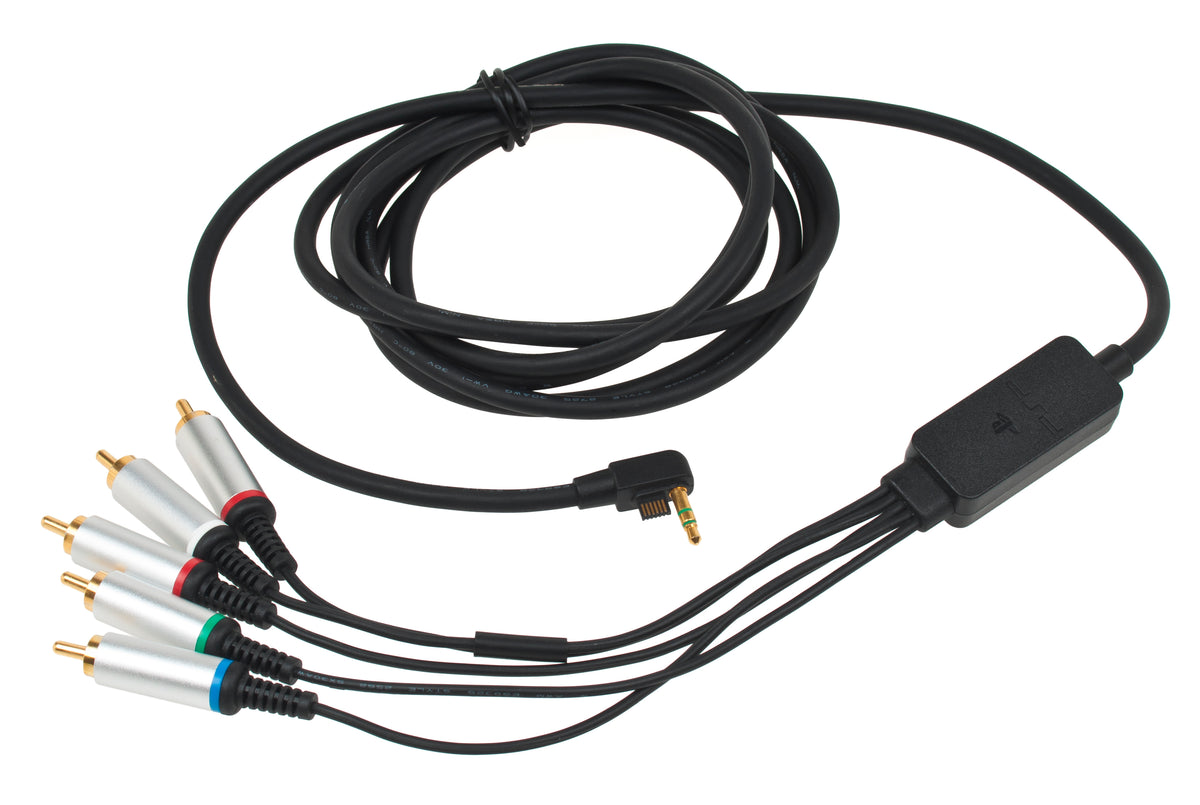
Featured photo: a PSP component AV cable for the PSP-2000/3000 connection style discussed here. Evan-Amos, public domain, unchanged. Hardware reference, not a photograph of a working TV connection.
The PSP-2000 catch: a menu is not the whole test
Sony's PSP-2000 output guide distinguishes the cable's capabilities from the content being displayed. Its component AV cable supports progressive output; its composite AV and S VIDEO cables do not. For PSP game output, plan around a progressive-capable cable and a TV that accepts that mode.
There is an important exception in Sony's instructions: PlayStation-format software can use any compatible video-output cable. That exception is not permission to treat every PSP game the same way. A demonstration using one kind of content does not settle what another kind will do.
Ask a seller what was actually tested. “The TV displayed something” leaves a lot unanswered. A useful description names the PSP model, cable, television input and whether the demonstration showed a PSP game or different content. A photo of the menu is evidence of that menu, not the entire arrangement you want to buy.

The PSP-3000 has its own instructions
Sony provides a separate output page for PSP-3000/N1000 systems, listing component AV, S VIDEO and composite AV connections. It tells owners to match the cable to both the television and PSP model. The N1000 has a specific S VIDEO exclusion, so even that shared page needs to be read with the model notes intact.
For a PSP-3000 purchase, ask for a cable explicitly identified for that model. For a different PSP family, use its own documentation instead of assuming a similar-looking handheld has the same connection options. This article is deliberately limited to the 2000/3000 setup rather than treating the whole PSP line as interchangeable.
Record the TV's exact input label as well. Do not shop from a vague memory of some colored sockets on the back. A photograph of the labels and the proposed cable is useful information to have before paying for either. Keep that record with the model details so you can compare an actual listing against your setup.
Switch the output deliberately
For these supported connections, Sony's procedure is to connect the appropriate video cable, select the matching input on the television, turn on the PSP and hold its display button for at least five seconds. Pressing that button again clears the video output.
Use the television's input label to confirm you selected the sockets occupied by the cable. Then check that you actually held the PSP display button, rather than giving it a quick tap. Keep the model and cable notes beside you. If you ask for help afterward, “PSP-2000, component cable, this input, this result” gives somebody much more to work with than “the screen is black.”
Sony also places output adjustments under Settings > Connected Display Settings. Its Component / D-Terminal Output option offers Progressive and Interlace modes. Progressive is valid with a television that supports it. Changing a menu option does not establish that the TV accepts the signal.

Black bars are not automatically a broken cable
Sony's TV Type setting lets you choose 16:9 or 4:3 to suit the display. Its output guides also warn that predetermined image sizes in some software can leave borders. The same guides caution that output might not display correctly on some TV models.
First separate a missing signal from a picture you dislike. If an image appears, describe its shape and what content is running before buying another accessory. A border, a stretched picture and no picture at all are different observations. Stretching the television image until every edge is filled is a preference, not proof that the source has changed.
For buying purposes, request a demonstration of the game and connection type you intend to use. For troubleshooting, keep one known setup intact while checking each documented setting. Neither approach guarantees a particular television will cooperate, but both are more useful than collecting unidentified cables and hoping the next one is special.
Put the right PSP game on your shelf
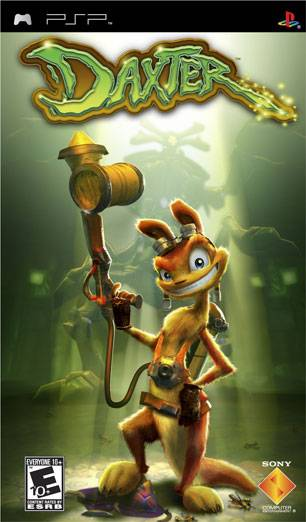
Buy physical PSP games from Zypher. Check our listings for God of War: Chains of Olympus and Daxter, then select the condition and contents that suit your collection. These are PSP game purchases, not TV-output accessory bundles.
Keep the discs protected with our PSP UMD care and buying guide. Clearing room for another stack? Sell your old games to Zypher and check current eligibility.
Sony's linked original user-guide pages, photograph licenses and native Zypher product listings checked November 7, 2026. The buying and troubleshooting organization is Zypher editorial advice; no fresh hardware testing or current accessory stock is claimed.